
Miscellaneous questions
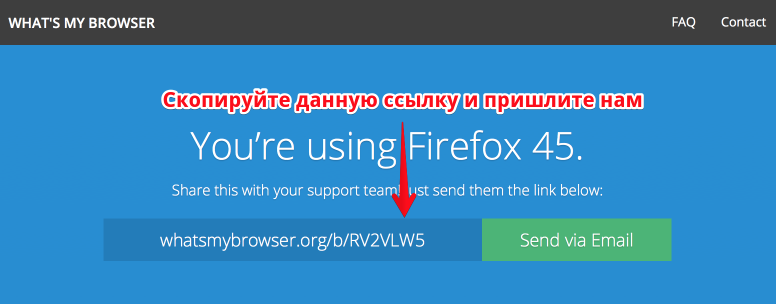
Find out what your Internet browser (a program through which you open sites) is very easy.
Just go to the website https://whatsmybrowser.org/
The system will identify your browser and its main parameters.
You will see a summary report like this:
To transfer data to our technical support just copy the link from the top of the page and send it to us.
Just go to the website https://whatsmybrowser.org/
The system will identify your browser and its main parameters.
You will see a summary report like this:
| Operating system | OS X 10.11 |
| IP address | 46.148.225.41 |
| Javascript enabled | Yes |
| and so on ... | |
To transfer data to our technical support just copy the link from the top of the page and send it to us.
Of the large number of existing browsers, we have chosen the most popular and have made every effort to make our project they worked perfectly.
If you find a typographical error or any error, copy it, and write to us on [email protected].
We will fix it and thank you for helping us improve our favorite service!
We will fix it and thank you for helping us improve our favorite service!
When you contact Support, we may ask you to send us a screenshot (screen capture).
How to make a screenshot in Windows 7 / Windows 8
Open the window you want to take a picture, and press « Print Screen ». As a rule, it is in the top row of the keyboard, the right of the F12 key. Visible changes will not happen, but screenshot will be taken.
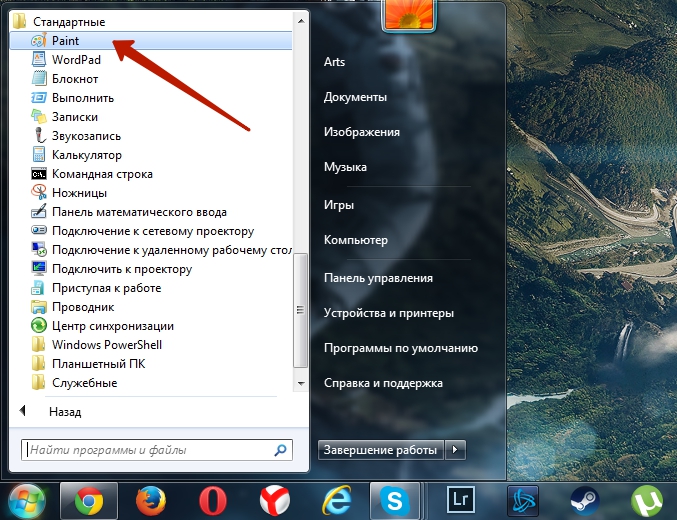
Now open the Paint program. If you have Windows 7, go « Start » / « Standard »/ Paint:
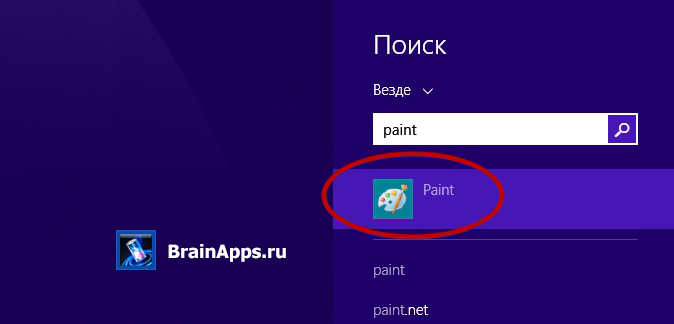
If you have Windows 8, click « Win» on keyboard, and in the search box on the right enter the word «paint».
Open the program. Insert a screenshot using a combination of Ctrl + V keys. Instead of white sheet your picture appears. Now save it by pressing Ctrl + S.
Screenshot ready. Now you can send it to us by mail.
& Nbsp;
How to make a screenshot in Mac OS
In Mac OS, screen shots are made very simple. You just press the right combination of keys:
Cmd + Shift + 3 - captures the entire screen and save it to your desktop
Cmd + Shift + 4 - select an area of the screen, to make it a picture and save it to your desktop
After that, you can send us a screenshot [email protected] mail.
How to make a screenshot in Windows 7 / Windows 8
Open the window you want to take a picture, and press « Print Screen ». As a rule, it is in the top row of the keyboard, the right of the F12 key. Visible changes will not happen, but screenshot will be taken.
Now open the Paint program. If you have Windows 7, go « Start » / « Standard »/ Paint:
If you have Windows 8, click « Win» on keyboard, and in the search box on the right enter the word «paint».
Open the program. Insert a screenshot using a combination of Ctrl + V keys. Instead of white sheet your picture appears. Now save it by pressing Ctrl + S.
Screenshot ready. Now you can send it to us by mail.
& Nbsp;
How to make a screenshot in Mac OS
In Mac OS, screen shots are made very simple. You just press the right combination of keys:
Cmd + Shift + 3 - captures the entire screen and save it to your desktop
Cmd + Shift + 4 - select an area of the screen, to make it a picture and save it to your desktop
After that, you can send us a screenshot [email protected] mail.